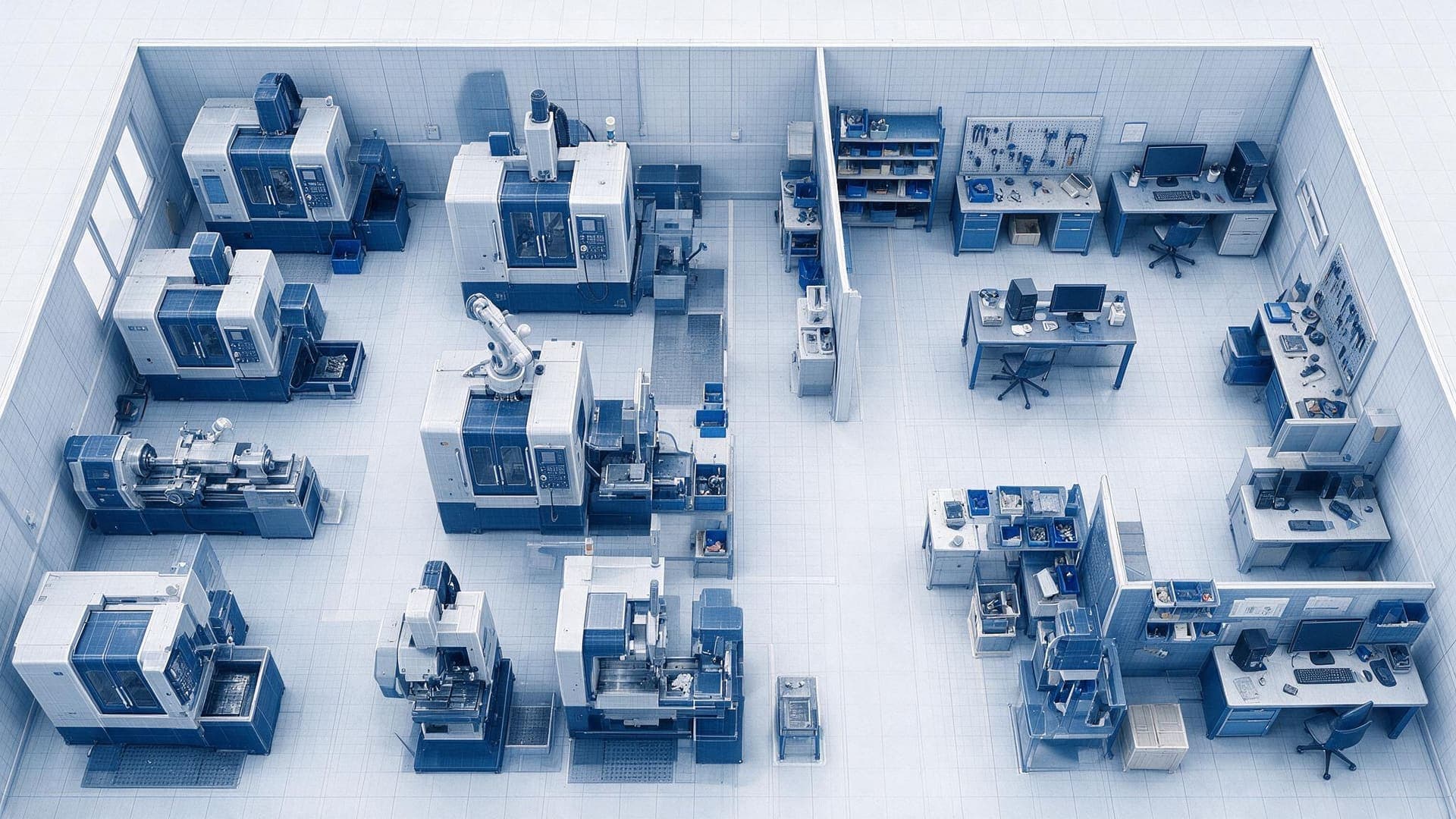
Ship parts on time
A preview of PartScheduler, filled with sample data.
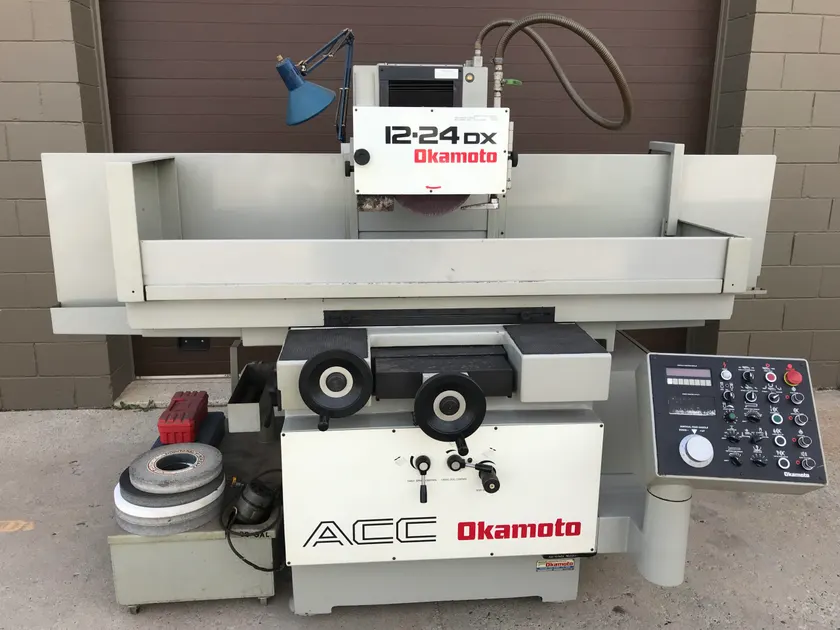
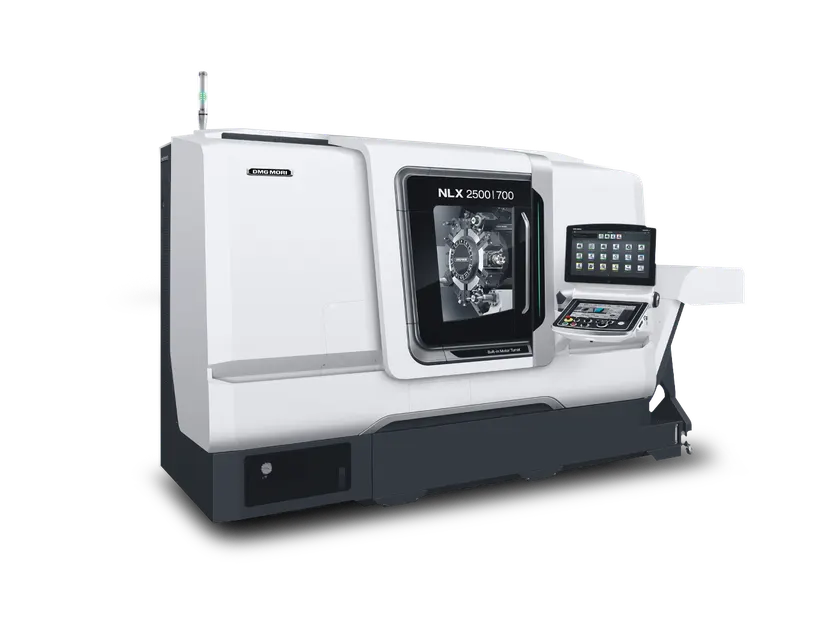
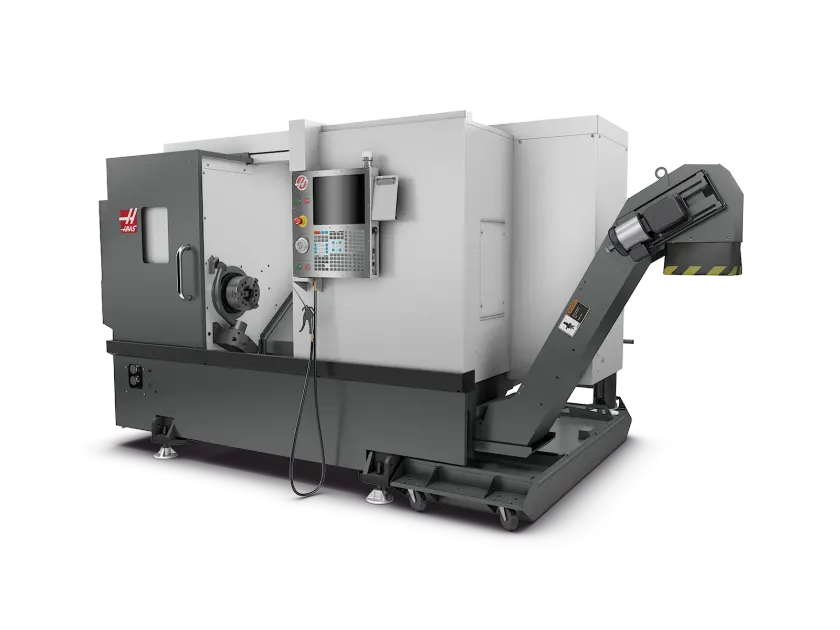
Setup takes hours, not weeks.
No sales call and no waiting on us: sign up, set up your shop and go. Every shop starts with 60 days free, and one price covers the whole shop, however many people use it.
Your card goes in at signup, on Stripe’s payment page. We email you before the free trial ends, and a shop that cancels before then pays nothing.
What it is
It’s not an ERP, but it’s everything you need and nothing more.
We built PartScheduler so a small or mid-sized machine shop can keep the delivery dates it promises. With the schedule on a whiteboard and in somebody’s head, the shop usually finds out a job is late when the customer calls to ask where it is. PartScheduler shows you which jobs are about to be late, so you can catch one before the phone rings and still make the date.
What it covers
- Every job, from purchase order to shipment
- A whiteboard-style board and machine queues
- Part recipes, plus a piece count for each op
- Each job’s material, with its certs and ETA
- The print, a click away on the job and part
- A 3D viewer for STEP and IGES part files
- On-time delivery reporting
Left out on purpose
- Accounting
- Quoting
- Payroll
Keep your books in QuickBooks or something like it, and run your jobs with us.
Side by side
Feature comparison
Shop software can be very confusing and hard to use: sold in modules. Our mission is to simplify, while providing the most value with easy-to-understand pricing.
Pricing
PartSchedulerYes.One simple price, monthly or yearly. No hidden fees, ever. Unlimited employees and users.
Typical shop softwareNo.Complex pricing, priced on the number of people, or metered on order volume.
Setup and usability
PartSchedulerYes.Simple and intuitive interface, with a built-in help center.
Typical shop softwareNo.Can be difficult to use, requires paid training.
Features
PartSchedulerYes.One version has it all. No confusion.
Typical shop softwareNo.Some features come only with expensive additional modules.
Job scheduling and tracking
PartSchedulerYes.Simple and fast job setup, intuitive tracking.
Typical shop softwareYes.One module among many.
Part recipes
PartSchedulerYes.Ensures no step is ever missed, allowing perfect on-time shipments no matter the part’s complexity.
Typical shop softwareNo.Traditional bulky setup, hard to maintain accuracy.
Comparison based on other typical shop software: The job-shop and manufacturing systems a shop would otherwise be sold.
The app
Three questions, and the screens that answer them.
We built the main screens around these three, and five seconds is our target for finding each answer. Behind those answers, a job can carry its files, recipe, piece counts and material, so anyone who opens a late job can see where it stands.
What is due this week?
Answered on: Home · Board
Home and the Board both count jobs due in the next seven days; click that count and the Board shows only those jobs.
What is late, or about to be late?
Answered on: Job list
The Risk column marks a job “Critical” when its due date is close and its pieces are behind, and “Late” once that date passes.
Where is that job right now?
Answered on: Operations
On Operations, a job’s number is a button that strips the screen down to the queues holding its work, in the order its steps run.
The detail on each job
STEP and IGES in 3D
STEP and IGES files get a thumbnail, and anyone on the floor can spin the model in 3D without CAD software.
The print, a click away
One click on the job brings up the PDF print, where an operator can check a dimension before the first piece.
The traveler, from the recipe
A job’s traveler lists its recipe in order, with a line for each setup and each run to sign and date.
Piece counts by operation
An operator can type the running total for an operation, so anyone checking a stuck job sees how far it got.
Each job’s material and certs
While a job’s material is on order, its first card on Operations reads “Waiting on material”, with any expected date you entered.
Data entry is the enemy
Every field is one more thing somebody has to stop and type, so we set a 30-second target for a new job.
Part recipes
The routing lives on the part. Every job runs it.
A recipe is a part’s routing: operation order, the machines allowed on each, setup and cycle times, and which steps go to a vendor. It is stored on the part, so the next order for that part already has one. Releasing a job freezes a copy. The floor works to that copy, and the due date is calculated from it.
Below is the application’s Add-a-part page, loaded with one shop’s machines and actions. The recipe builder at the foot of it works. The file drawers are shown but do not upload, and nothing is saved: refreshing empties the form.
Parts library
Add a part
Every part is filed under a customer. The same number for two customers is two parts.
What the shop calls it — “impeller hub”. Most parts have one.
What is on the print.
Optional — A, B, C3.
Optional — 6061-T6 Aluminum, 17-4 PH Stainless.
Files
Prints & blueprints
PDF, DWG or DXF.
- LRK-2274 rev C.pdf
Solid models & CAD
STEP, IGES, Parasolid, SLDPRT, STL, 3MF.
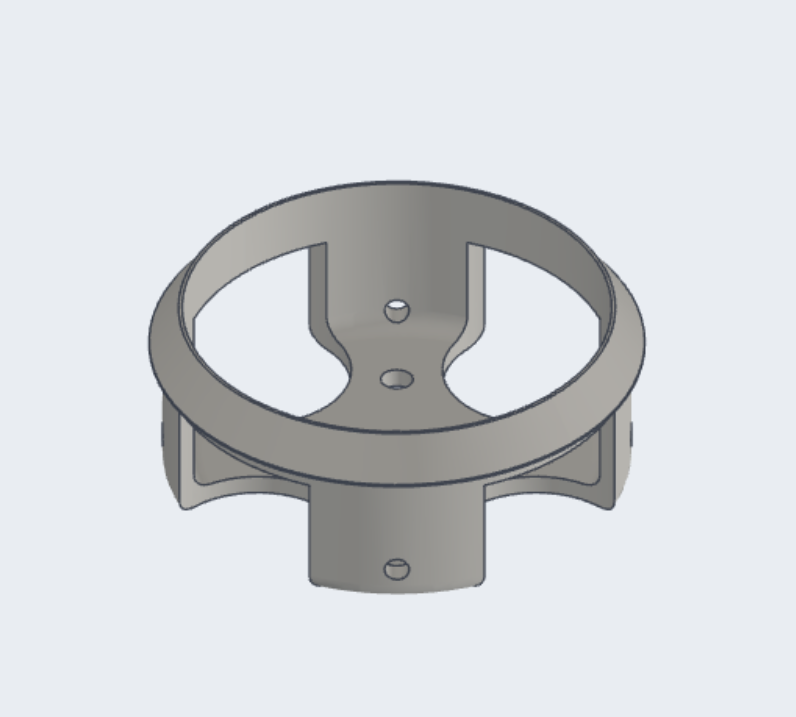
- LRK-2274.step
Other documents
Anything else worth keeping with the part — specs, photos, notes.
Nothing here yet.
Drag and drop or use the Add files button — up to 100 MB each.
Recipe builder
Run here
Sent out
Click a pill to add it at the end, or drag it into place. A sent-out step names the ACTION — which company does it is chosen when the work is actually sent out; new actions come from the vendors page. Run-here choices come from the machine types under Equipment › Work centers.
Machining total 3h — feeds the capacity math.