Blog
Shipping every order on time, step by step
Six steps in PartScheduler take an order from purchase order to shipped, with warnings that flag a late job while you can still save it.
5 min read

The short version
Enter the purchase order once, and PartScheduler turns each line on it into a job. As work moves across the floor, the board and its warnings flag slipping jobs while there are still days to fix them.
A small machine shop often learns about a late order when the customer calls to ask where it is. By then, the job may have waited behind another setup for a week, with its date unchanged on the whiteboard.
The trouble starts with where the schedule lives. Part of it sits on a whiteboard, part in a spreadsheet, and the rest in the head of whoever runs the floor. PartScheduler keeps the schedule in one place. Each main screen is built to answer one of three questions in under five seconds:
- What is due this week?
- What is late, or about to be late?
- Where is a given job right now?
The six steps below follow one order through the app, from the purchase order (PO) to the shipping dock. Every screen shows the demo shop, whose customers and jobs we invented.
Step 1: Turn the purchase order into jobs
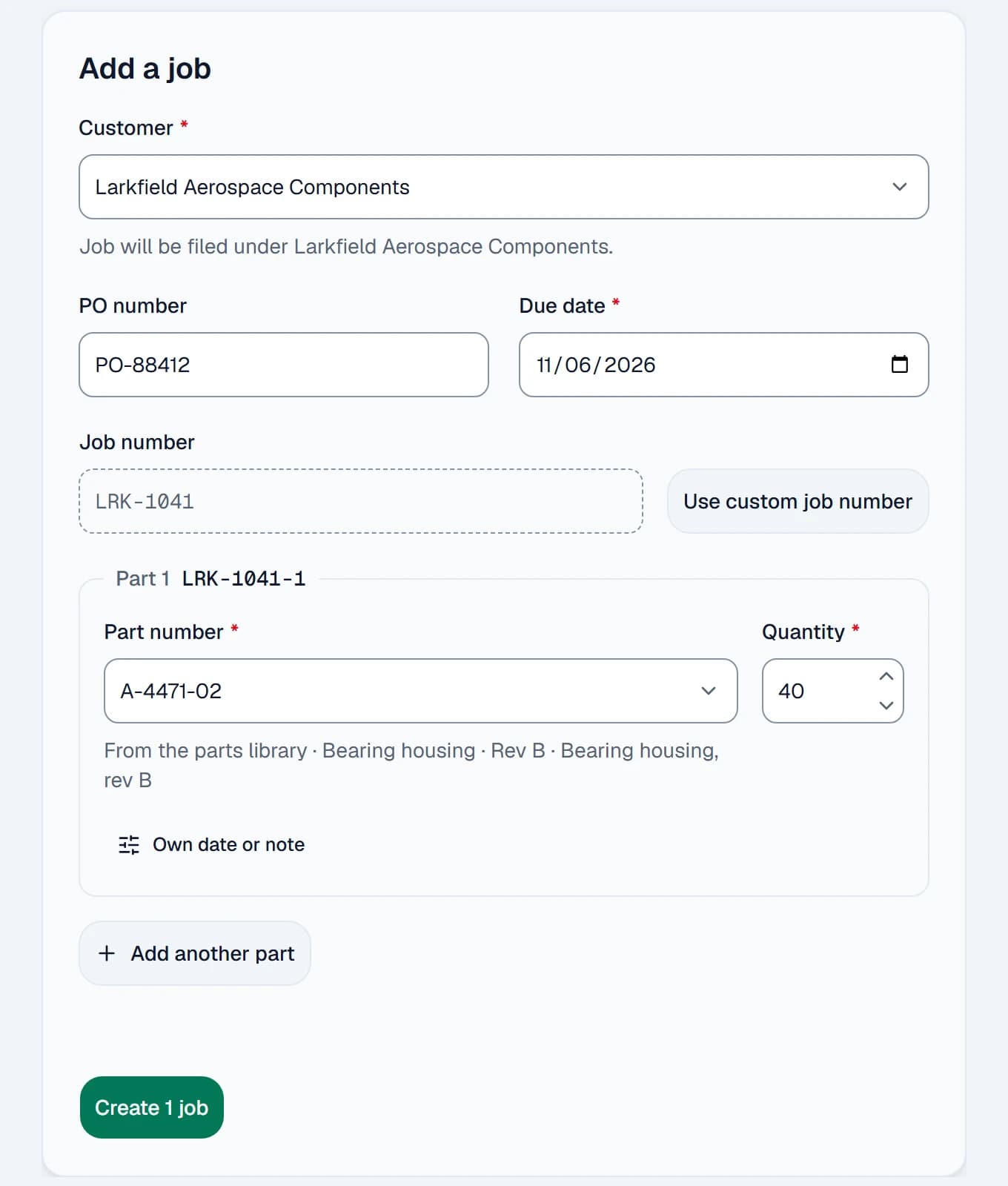
Every order starts on one form, and one form holds one PO. First, pick the customer, type the PO number and set the due date. Next, add a line for each part on the order, with its part number and quantity. When you press Create, each line becomes its own job, numbered from the order as LRK-1041-1, LRK-1041-2 and so on.
With automatic job numbers, the form requires four fields: the customer, the due date, the part number and the quantity. When the part already sits in your parts library, its saved recipe comes with it, so you type the routing once. We designed the form around a target of 30 seconds for a new job.
Step 2: Release the job with its recipe
A new job waits in the Not Released column until you send it to the floor. Release to floor copies the part’s recipe onto the job: each operation, the machine for it and its cycle time. For a part with material tracking, the release first asks whether the material is here. If the material is neither here nor on order, the job stays off the floor until you order it.
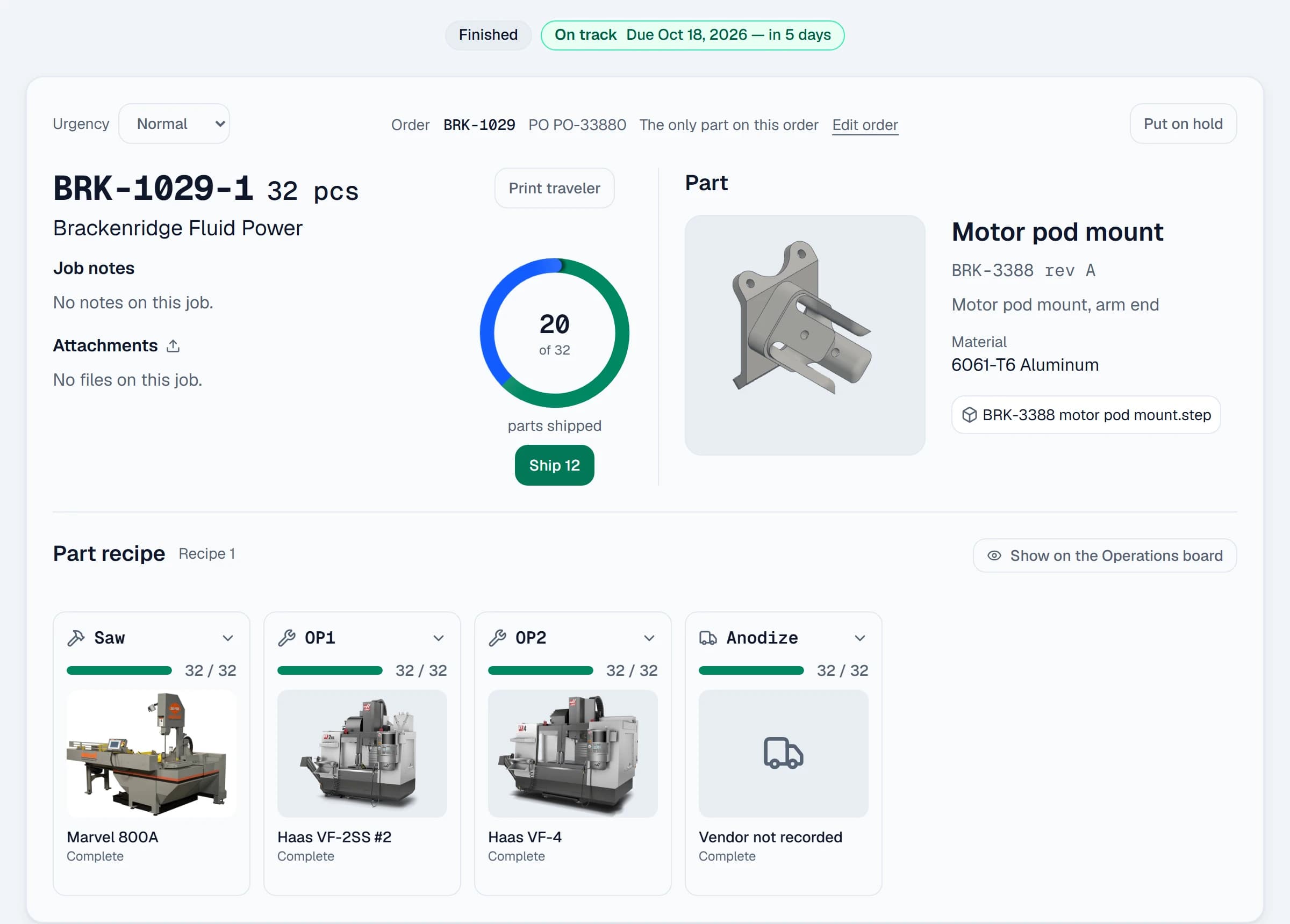
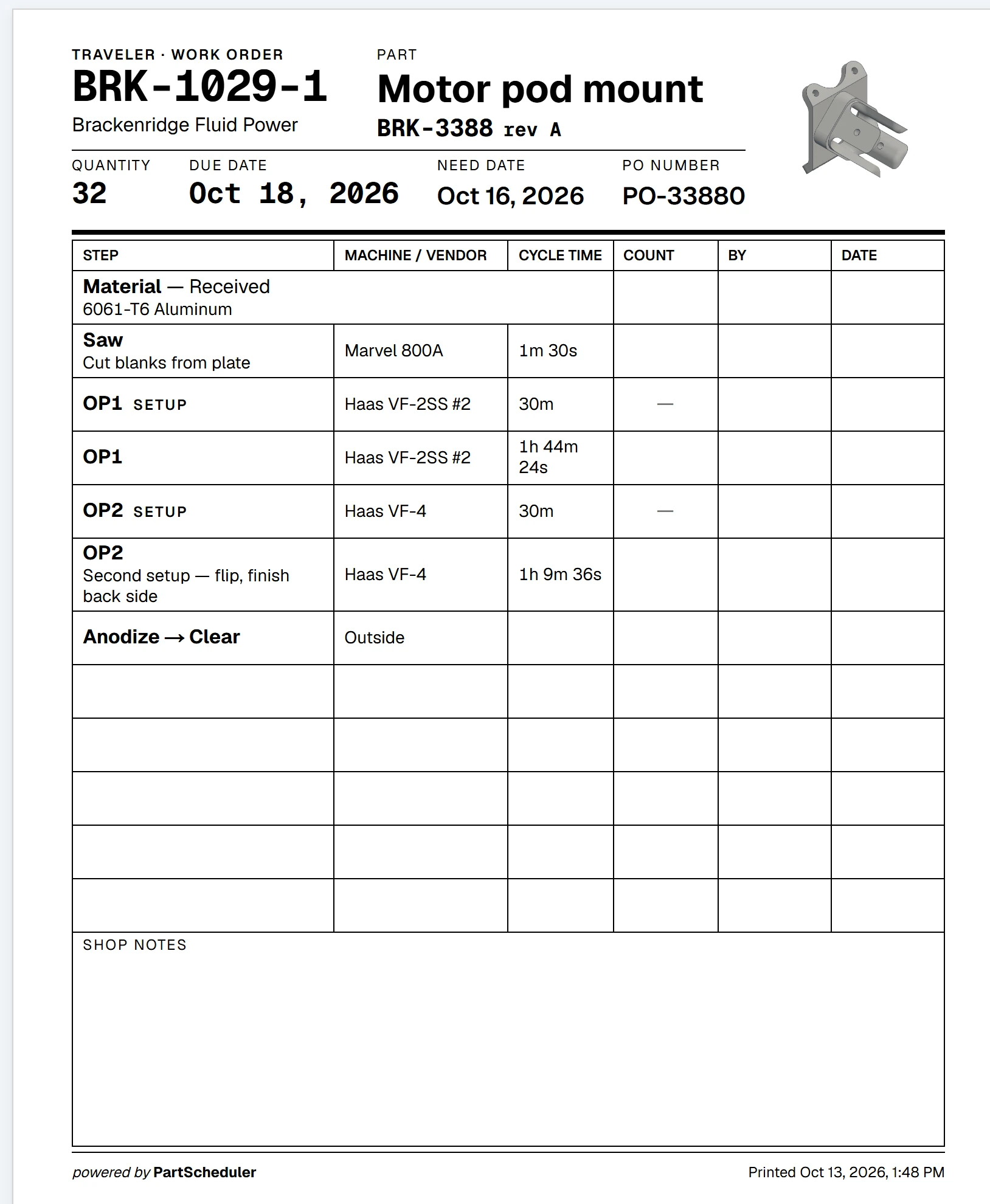
Next, press Print traveler. The traveler lists every step with its machine and cycle time, and leaves columns for the count, the operator and the date. The whole sheet fits on one page, so it travels to the floor with the material.
Step 3: Line up the work on each machine
Released steps land in the Unassigned row at the top of the Operations board. Below that row, each machine has its own lane, headed by a photo of the machine. To schedule the work, assign each step to a machine, then drag the cards into the order the operator should run them. The job on the machine stays pinned at the top of its lane.
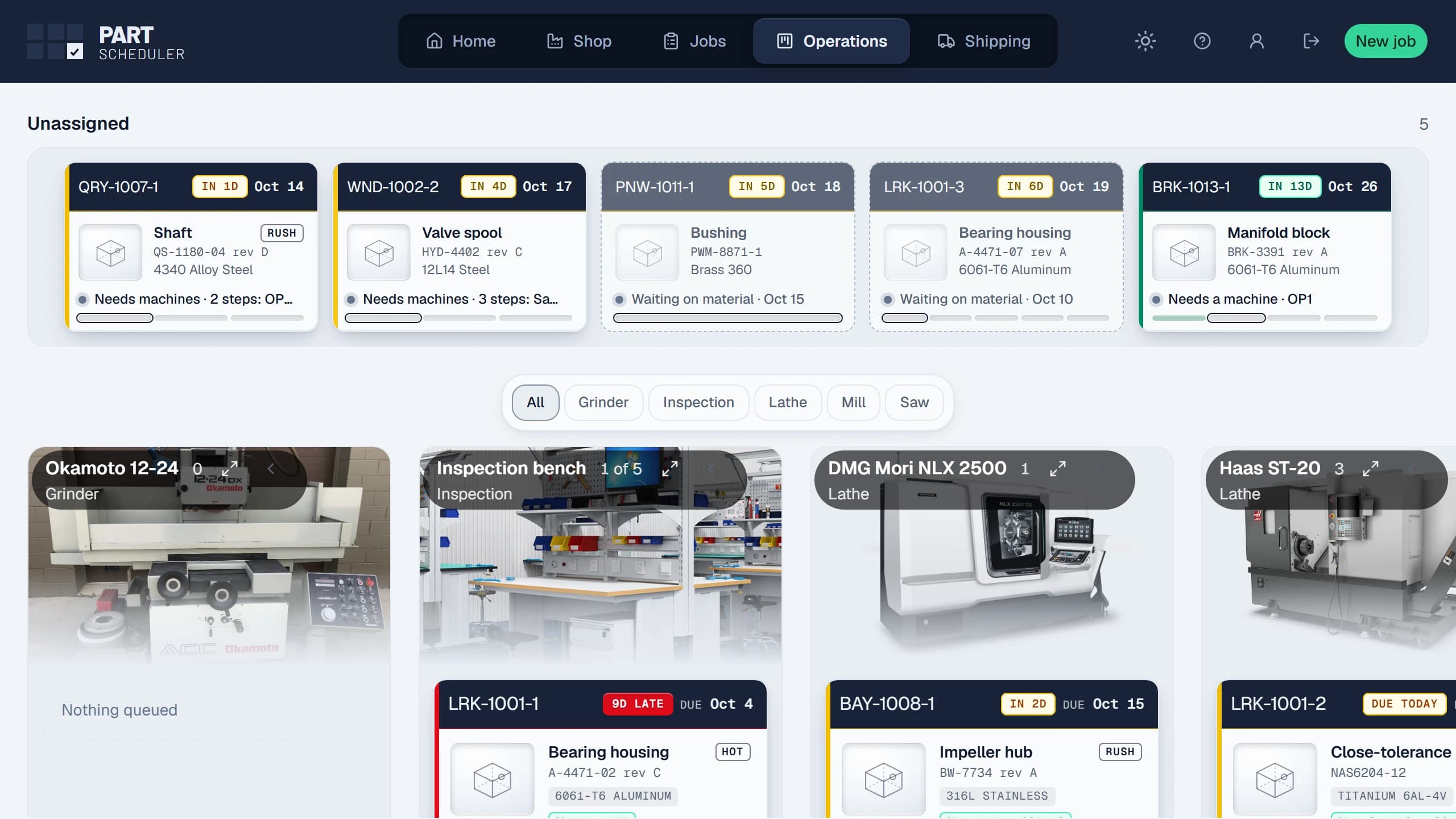
Each card carries the job’s due date and a bar for each step of its recipe. The card also estimates when its work will finish. When a job’s material has not arrived, its card turns grey and shows the expected arrival date. As pieces come off the machine, the operator presses Update job and enters the total through that step.
The board then moves the job on its own. The first count moves a job to In Process, and completing the last step moves it to Finished. As a result, the board stays current without anyone walking over to update it.
Step 4: Let the warnings watch the due dates
While the work runs, the board keeps each open job in a column by where it stands. Every card shows a countdown chip, such as In 4d, Due today or 4D late, colored by its risk. A search box at the top finds any job by its number, part, PO or customer.
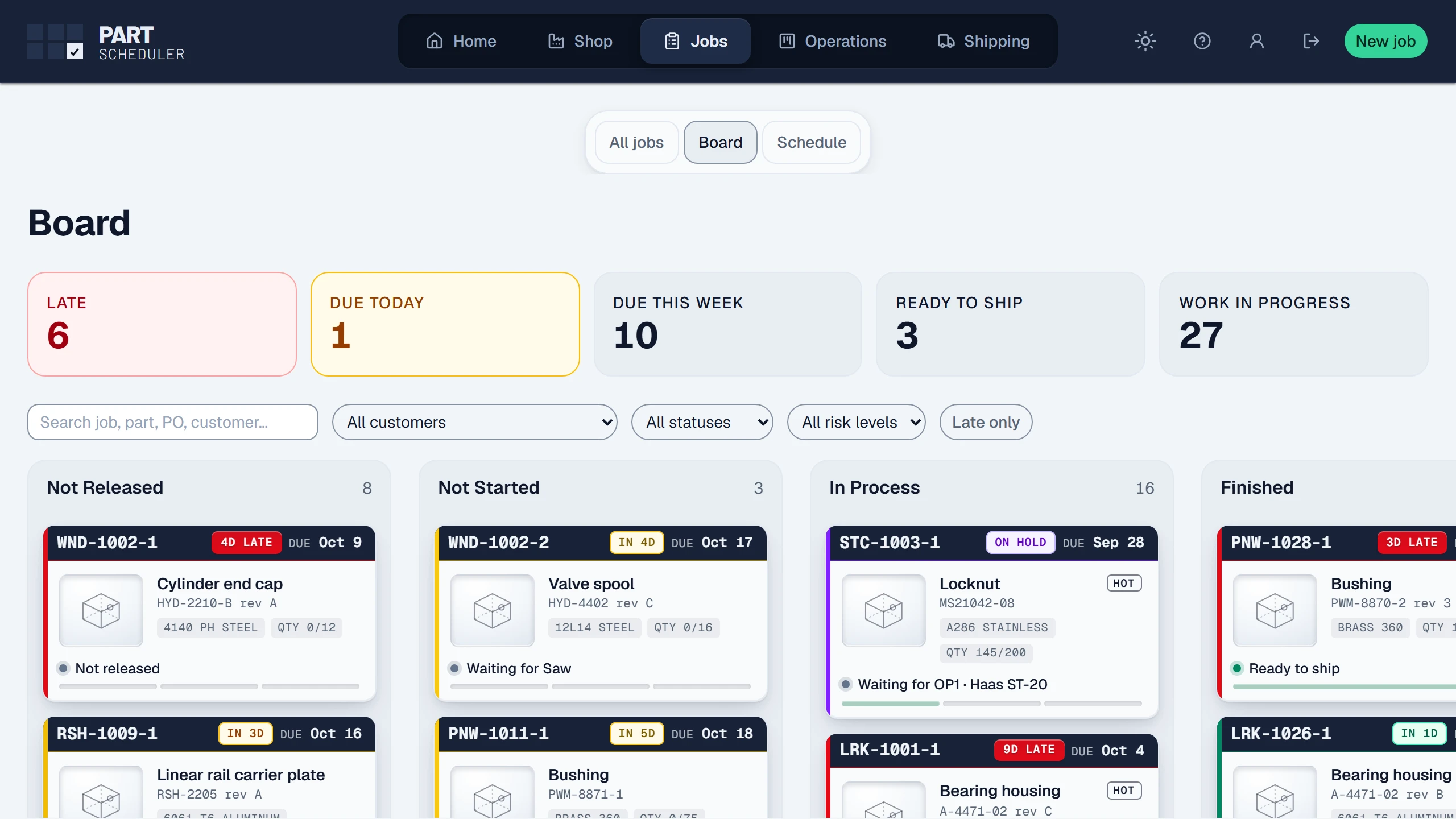
PartScheduler checks every open job against three warnings and gives each job the first one it matches:
| Warning | When a job gets it |
|---|---|
| Late | The promise date has passed. |
| Critical | Due within 3 working days and less than half complete. |
| At risk | Due within 7 working days and not started yet. |
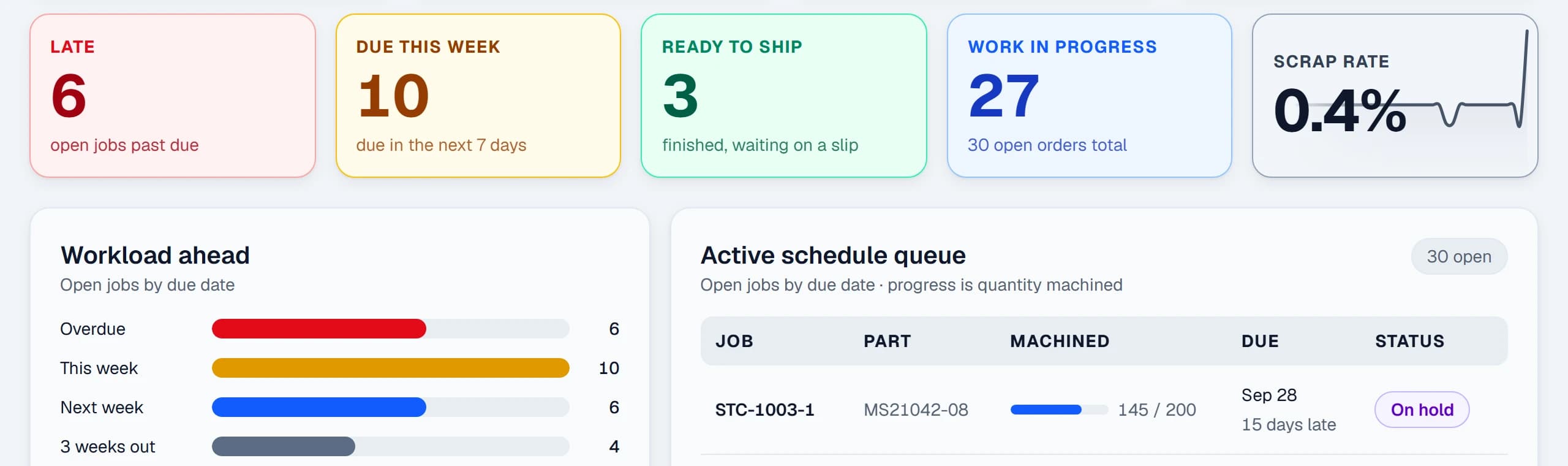
The day counts above are defaults, and you can change them under Early warnings in your company settings. Owners also get a Home screen, which calls an at-risk job “Due soon”. Its Needs attention row counts late jobs, jobs due this week, jobs ready to ship and work in progress.
Step 5: Ship the order
Finished jobs collect on the Shipping screen, grouped by purchase order. An order whose lines have all finished stands out, so you can ship the whole order at once. Press Ship job or Ship order, then enter the quantity and the date it shipped. Finally, choose how it left: by carrier with a tracking number, by pickup or by your own delivery.
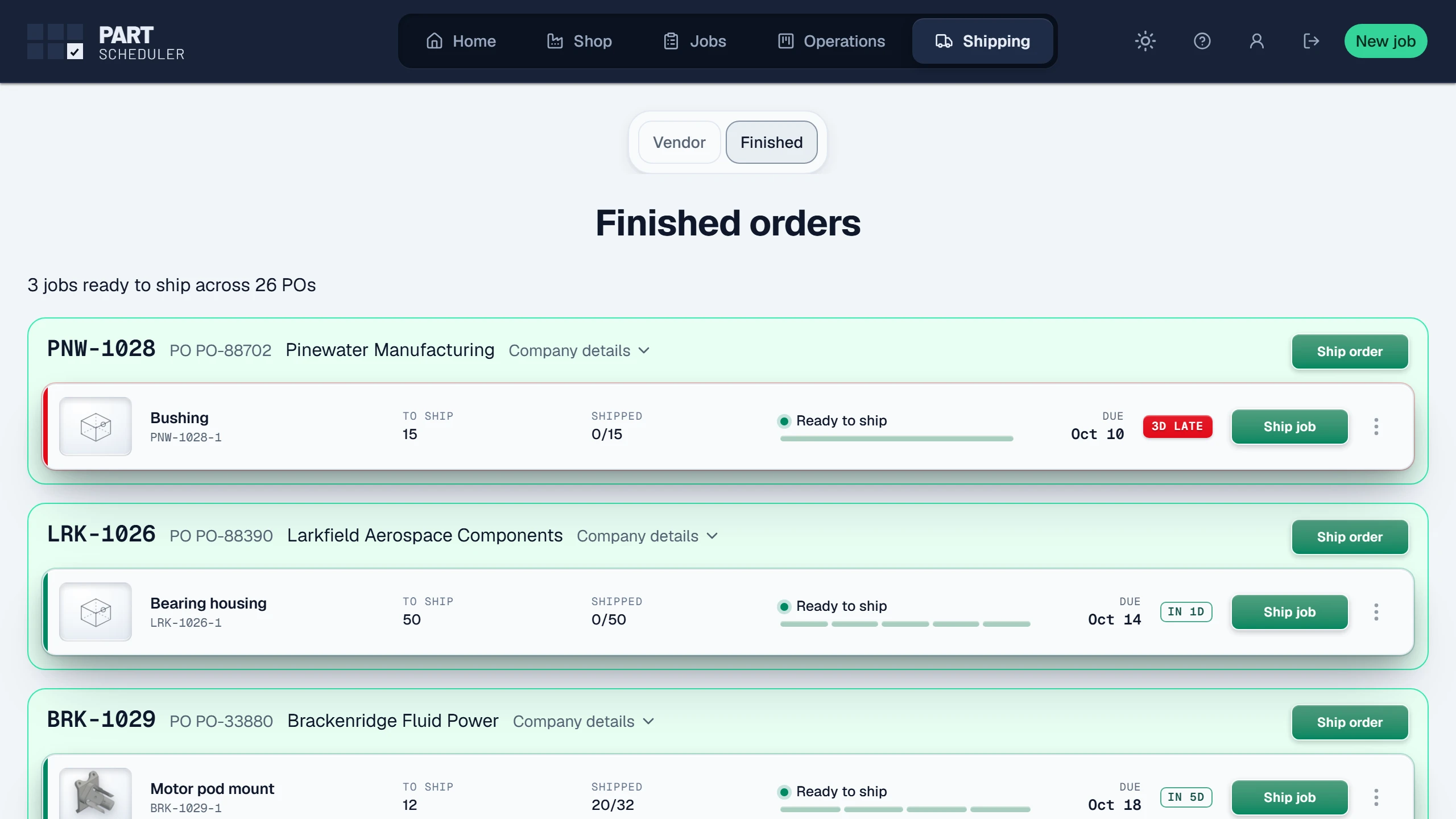
Afterward, Print shipper prints the packing slip. Partial shipments work as well, with each box numbered on its own. Once the full quantity ships, the job moves to Complete.
Step 6: Check your on-time record
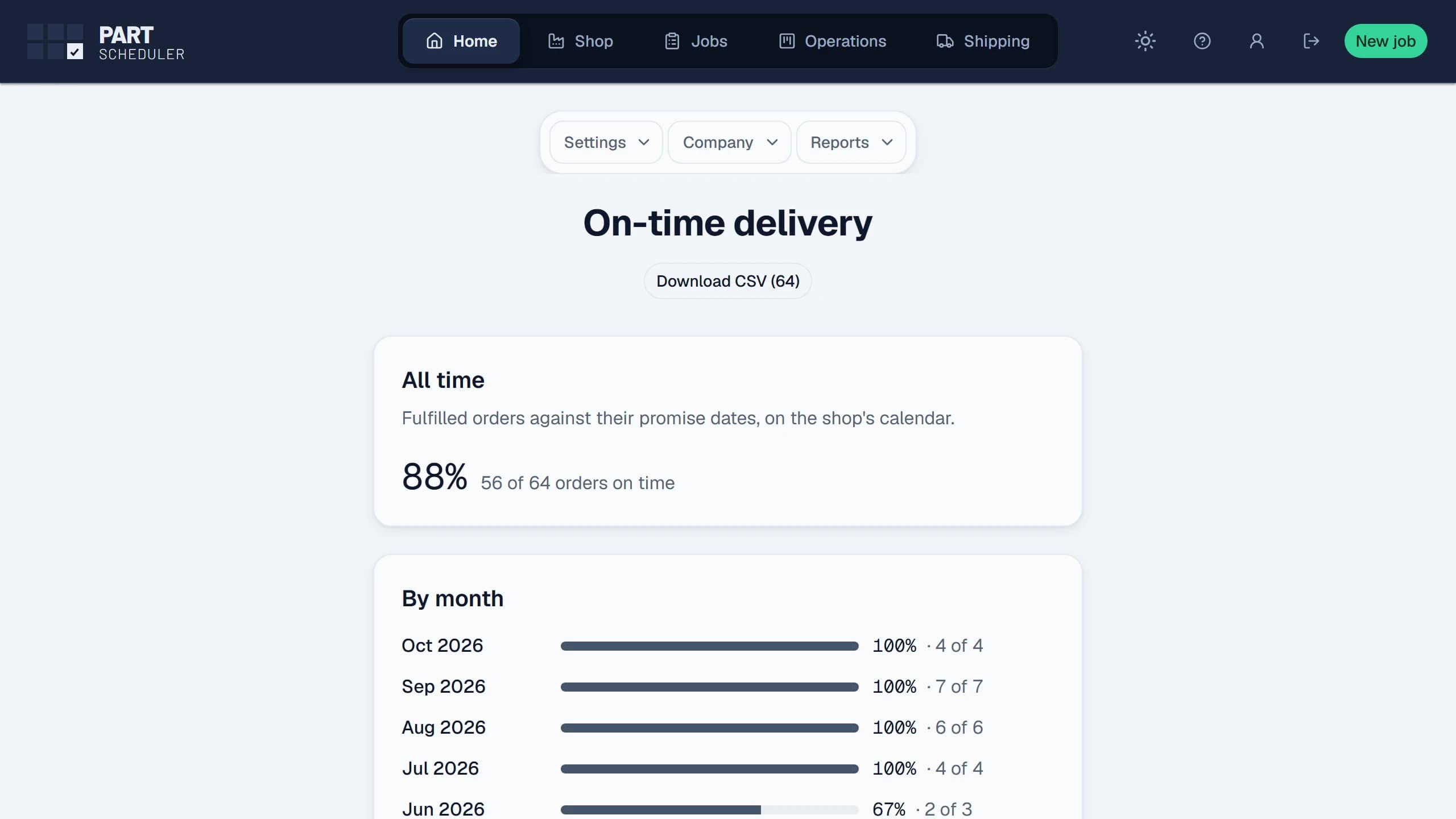
Each shipment feeds the On-time delivery report. The report counts an order as on time when it ships on or before its promise date, by the shop’s own calendar. You can read the record by month and by customer, along with each missed order and its days late. For a closer look, download the whole record as a spreadsheet file.
See it before you sign up
The demo board on our home page runs on invented jobs as well. You can click through all five of its views today. Further down that page, the part recipe builder redraws a job card and its traveler as you type. PartScheduler is not open to new shops yet. To be first in line, join the waiting list below.